How to Control Smart Ovens with Your Phone
• Updated
Controlling your smart oven with your phone is easier than ever. With just a few steps, you can remotely start, stop, and adjust settings from anywhere. Many smart ovens also offer features like real-time cooking updates, internal cameras for monitoring food, and voice control via Alexa or Google Assistant.
Here’s a quick breakdown of what you need to know:
- Apps: Use manufacturer apps like SmartHQ, Electrolux, or JennAir to connect your oven.
- Setup: Ensure your oven is WiFi-enabled, supports 2.4 GHz networks, and is placed near your router during setup.
- Features: Enjoy remote control, live cooking updates, and notifications for timer alerts or safety checks.
- Extras: Pair with tools like Honeydew Recipe Manager to import recipes, plan meals, and send instructions directly to your oven.
Follow the guide to connect your oven step-by-step, troubleshoot common issues, and unlock the convenience of managing your cooking from your phone.
How to Pair GE Smart Oven with SmartHQ App
What You Need Before Getting Started
Before pairing your smart oven with your phone, make sure you have everything you need for a hassle-free setup.
Compatible Devices and Apps
First, ensure you have a WiFi-enabled smart oven. For GE smart ovens, you'll use the SmartHQ app as your control hub, available on both the App Store and Google Play. Your smartphone must support either Apple iOS or Android to install the app. Download it, create an account, and confirm your email before proceeding. You can also explore AI meal planning with pantry integration to further streamline your kitchen workflow.
Locate the "Connected Appliance Information" label on the oven's door frame. This label includes the network ID and password you'll need for pairing. Additionally, identify whether your oven uses a touchpad or a knob, as the SmartHQ app provides tailored instructions for each control type.
Network Requirements
Your oven needs a 2.4 GHz WiFi network with WPA2 security to connect properly. Keep in mind that most smart ovens won't work with networks operating only on the 5 GHz band. Check your router settings to confirm it supports 2.4 GHz. As Tovala Support explains:
Please also verify your WiFi's security it must be set to WPA2 for a successful connection; you can find this information in your router settings or by contacting your internet service provider.
Place the oven within 10 feet of your router during setup to ensure a strong signal. If the connection is weak or the distance is too far, consider using a WiFi extender. Don’t forget to enable Bluetooth, Location Services, and any necessary app permissions to help your phone discover the oven. For Android users, turn off features like "Smart Network Switch" or "Auto Network Switch" in your WiFi settings to avoid disruptions.
Initial Preparation
Switch on your oven and keep your WiFi name and password at hand. Some ovens require you to press a "Remote Enable" button on the control panel to activate remote cooking. If you're using a pre-2021 model, you'll need to press this button before every remote cooking session.
Lastly, check for any firmware updates through the oven’s settings menu. A reliable network connection is key, as many ovens will automatically download updates once connected to WiFi.
With these steps completed, you'll be ready to connect your oven to your phone in the next section.
How to Connect Your Smart Oven to Your Phone
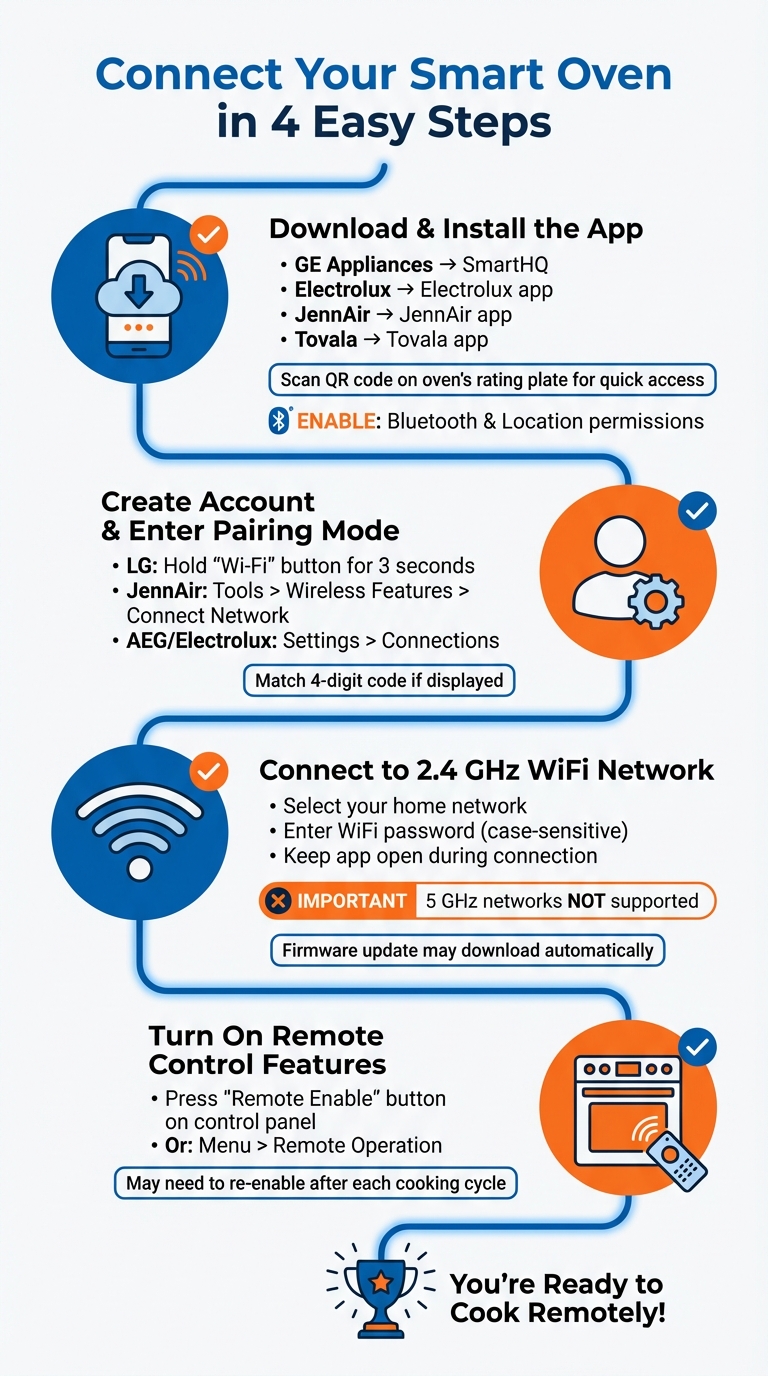
How to Connect Your Smart Oven to Your Phone in 4 Steps
Download and Install the App
To get started, you'll need the manufacturer's app for your smart oven. Open the App Store (for iOS) or Google Play Store (for Android) and search for the app associated with your oven. For example:
- GE Appliances: Download SmartHQ
- Electrolux: Use the Electrolux app
- JennAir: Install the JennAir app
- Tovala: Get the Tovala app
Some ovens make this process even easier by including a QR code on the rating plate (usually on the front frame of the appliance cavity). Scanning this code will take you directly to the app's download page.
Once you've installed the app, make sure to grant permissions for Bluetooth and Location services, as these are necessary for pairing. After that, create your account and prepare to connect your oven.
Create an Account and Pair Your Device
After installing the app, open it to create your user account and log in. Next, follow the prompts specific to your oven model to enter pairing mode. This might involve pressing and holding a button or navigating through the oven's settings. For example:
- LG Ovens: Hold the "Wi‑Fi" or "Timer On/Off" button for 3 seconds until the LED starts blinking.
- JennAir Ovens: Go to Tools > Wireless Features > Connect Network on the oven’s LCD screen.
- AEG and Electrolux Models: Navigate to Settings > Connections to enable WiFi.
If your oven displays a 4-digit code on its panel (common with Tovala models), confirm that it matches the code shown in the app before continuing. For iPhone users setting up LG ovens, you may need to temporarily exit the app, connect to the "LG_Smart_Oven" network in your WiFi settings, and then return to the app to complete the setup.
Connect to WiFi
Before proceeding, ensure your phone is connected to your 2.4 GHz WiFi network - many smart ovens are not compatible with 5 GHz networks. In the app, select your home network from the list, enter your WiFi password, and remember that both the network name and password are case-sensitive.
Keep the app open and active until the connection process is complete. After connecting, your oven might automatically start downloading a firmware update. Avoid unplugging the oven or closing the app until the update finishes.
Turn On Remote Control Features
Now that your oven is connected, you can activate its remote control capabilities. Locate the "Remote Enable" button on your oven's control panel and press it to turn on remote cooking. For GE smart ovens, note that this feature often deactivates at the end of a cooking cycle or when the oven door is opened, so you may need to press the button again before each session. For AEG and Electrolux models, you might need to go into the oven’s menu and select Remote Operation to enable this feature.
Once remote control is active, you’re all set to manage your oven right from your phone.
What You Can Do with Your Smart Oven App
Remote Cooking Controls
Your smart oven app lets you take charge of your cooking without being tied to the kitchen. You can start, stop, or cancel cooking cycles right from your phone. Need to make a quick adjustment? Change the temperature mid-cycle or activate the grill function to add a crispy finish to your dish - all with a few taps.
The app provides real-time updates like the current temperature, remaining cook time, and active cooking mode. Some models even go a step further, offering live video feeds so you can watch your food cook without opening the oven door and losing precious heat. Additionally, you can tweak system settings, such as enabling Sabbath mode, adjusting beeper volume, or updating the clock.
For a more guided experience, many apps include AssistedCooking programs. These programs suggest the ideal settings for specific dishes. Just select the type of food you're preparing, and the app will send the recommended temperature, cooking time, and mode directly to your oven. You can also save your favorite recipes in a digital cookbook, making it easy to recreate your go-to meals with precision.
Cooking Notifications and Alerts
Smart oven apps also keep you in the loop with helpful notifications. You'll know exactly when the oven finishes preheating or when your timer goes off, making multitasking a breeze. If you're using a connected temperature probe, the app will alert you the moment your roast or turkey hits the perfect internal temperature.
Safety is another key feature. The app notifies you if the oven is left on or if an error occurs. For steam ovens, you'll even get reminders when the water reservoir needs refilling. For instance, the SmartHQ app has received over 72,000 ratings on the Apple App Store, boasting an impressive average score of 4.6/5.
Using Honeydew Recipe Manager with Your Smart Oven
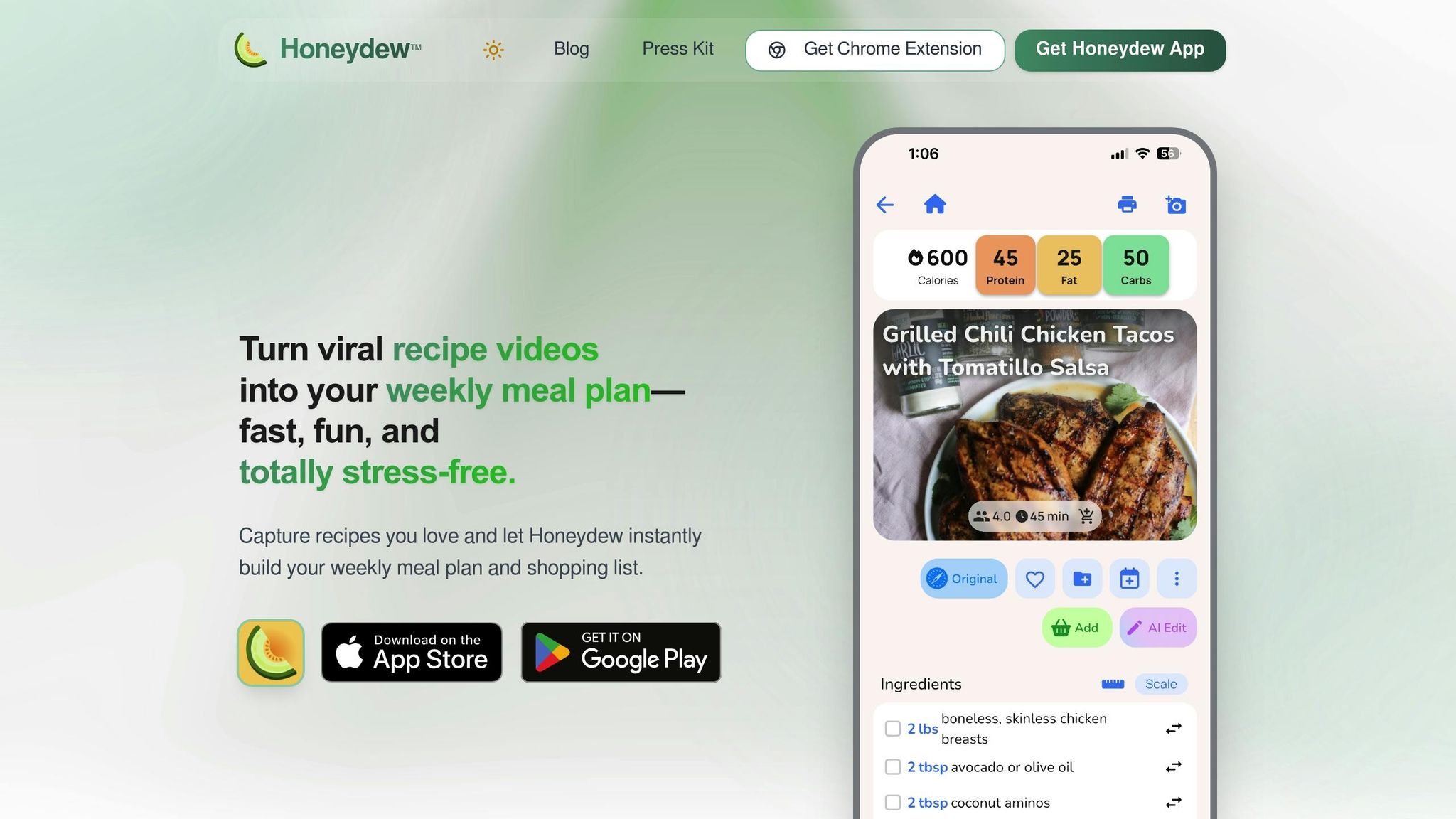
Take your cooking to the next level with the Honeydew Recipe Manager. This app lets you import recipes from platforms like TikTok, Instagram, YouTube, or any website. Users collectively save around 270,000 recipes each month on Honeydew. The app uses AI to extract ingredients and instructions from videos, photos, and even handwritten notes, turning them into clear, easy-to-follow recipes.
Once you've saved a recipe, Honeydew helps you plan your meals for the week and creates organized grocery lists sorted by store sections. When it's time to cook, apps like Home Connect or SmartThings can sync directly with your smart oven, automatically setting the temperature, time, and cooking mode. This seamless integration means no more juggling between screens or scrambling to find your notes while cooking.
Fixing Common Problems
WiFi Connection Problems
Make sure your phone is connected to the required 2.4 GHz network. If your oven doesn’t appear during setup, your router might have combined 2.4 GHz and 5 GHz bands under the same SSID. Temporarily separating them can help.
If the signal strength is weak because your oven is too far from the router, consider moving the router closer or using a WiFi extender. Allow up to 90 seconds after turning on the oven for its internal WiFi module to fully activate. During setup, your phone might switch to cellular data since the oven’s setup network doesn’t provide internet access. To avoid this, enable Airplane Mode and manually turn WiFi back on. If you’re getting credential errors, double-check your home WiFi password. Some ovens also have a separate appliance network password listed on a "Connected Appliance Information" label.
"Only 2.4GHz networks are supported. If you have more than one home network, your oven and mobile device will need to be connected to the same one." - AEG
If problems persist, try unplugging your router for at least 30 seconds to reset it. You can also reset the oven’s hardware by turning its circuit breaker off for 30–60 seconds.
If the setup seems correct but pairing still won’t work, follow the app-specific pairing instructions below.
App Won't Pair with the Oven
Begin by activating pairing mode on your oven. Look for a flashing WiFi icon to confirm it’s ready. If the icon stays solid, reset the connection and try again.
For Samsung models like NV7B4430ZAB and NV7B45305AS running on iOS 17, copy the setup URL into Safari, remove the "ppList" parameters, accept the privacy terms, and then return to the app to complete setup.
If pairing continues to fail, ensure both the app and oven firmware are updated. Clearing the app cache or reinstalling it can also help. Check your router settings to ensure MAC address filtering isn’t blocking the oven’s unique identifier.
If remote features still don’t work after pairing, refer to the troubleshooting steps below.
Remote Features Not Working
Remote start won’t work if the oven door is open. Many ovens also require pressing a "Remote Enable" button on the control panel each time you want to use remote features.
"Remote control is not enabled for your appliance. Please refer to the use and care manual for instructions to set 'Remote Enable'" - GE Smart HQ app
Disable Child Lock and Sabbath Mode, as these settings can block remote functionality. If remote features stop working unexpectedly, try logging out of the app, clearing its cache, and logging back in to refresh the connection. Unplugging the oven for about one minute to power cycle it can fix up to 70% of common issues.
Lastly, confirm that the app has the necessary permissions enabled, such as Bluetooth, location services, and background app refresh, to maintain proper communication with your oven.
Conclusion
Controlling your smart oven through your phone makes cooking easier and more convenient. You can preheat the oven while shopping, adjust the temperature from your couch, and tweak settings like beeper volume or Sabbath mode directly in the app - no need to deal with complex control panels.
Voice assistant integration, with options like Amazon Alexa and Google Assistant, adds even more ease. It's a lifesaver when your hands are messy.
Smart meal planning takes things a step further. Pairing your oven with Honeydew Recipe Manager can completely change your cooking routine. With a 4.8/5-star rating and over 270,000 recipes saved monthly, Honeydew lets you pull recipes from TikTok, Instagram, YouTube, or any website using AI. You can organize meals on a weekly calendar, create grocery lists sorted by aisle, and even order ingredients through Instacart - all before you step into the kitchen.
Here’s what users are saying:
"Honeydew has transformed the way I cook. I'm saving so much time and enjoying new recipes every week!" – Sarah M., Home Cook
FAQs
Can I control my smart oven when I’m not home?
Yes, you can manage your smart oven remotely with apps like Home Connect, SmartHQ, or Samsung SmartThings. These apps allow you to monitor and tweak oven settings no matter where you are. Just ensure your oven is connected to Wi-Fi and the app is properly set up for a smooth experience.
Why won’t my oven connect to my WiFi?
If your oven isn’t connecting to Wi-Fi, start by double-checking the password from the appliance’s "Connected Appliance Information" label. Make sure the oven is within range of your Wi-Fi network and that no interference is blocking the signal. Try restarting both the oven and your router, or disconnect and reconnect the oven to the network. Also, verify that your Wi-Fi is set to use WPA or WPA2 security, as other configurations might lead to connection issues. These steps usually address most common connectivity problems.
Is it safe to start the oven from my phone?
Starting your oven using your phone can be safe, provided your smart oven is set up and connected correctly. Make sure to follow safety precautions: double-check the oven’s status before activating it, ensure the oven is clear of any obstructions, and keep an eye on its operation while it’s in use.