How to Sync Smart Appliances with Meal Planning Apps
• Updated
Want to make your kitchen smarter and your cooking easier? Syncing your smart appliances with a meal planning app like Honeydew Recipe Manager can save time, reduce food waste, and cut grocery bills. Here's how it works:
- Connect smart devices like ovens, refrigerators, and sous vide machines to Honeydew for automatic recipe sharing and remote control.
- Use AI tools to plan meals, create grocery lists, and get recipe suggestions based on what's in your fridge.
- Save money and reduce waste - users report cutting food waste by up to 40% and saving around $125 monthly.
- Monitor and adjust appliances remotely, including preheating ovens or checking cooking progress from your phone.
With a few simple steps, you can link your appliances, integrate Honeydew, and streamline your cooking routine by comparing meal planning apps vs manual planning. Let’s break it down.
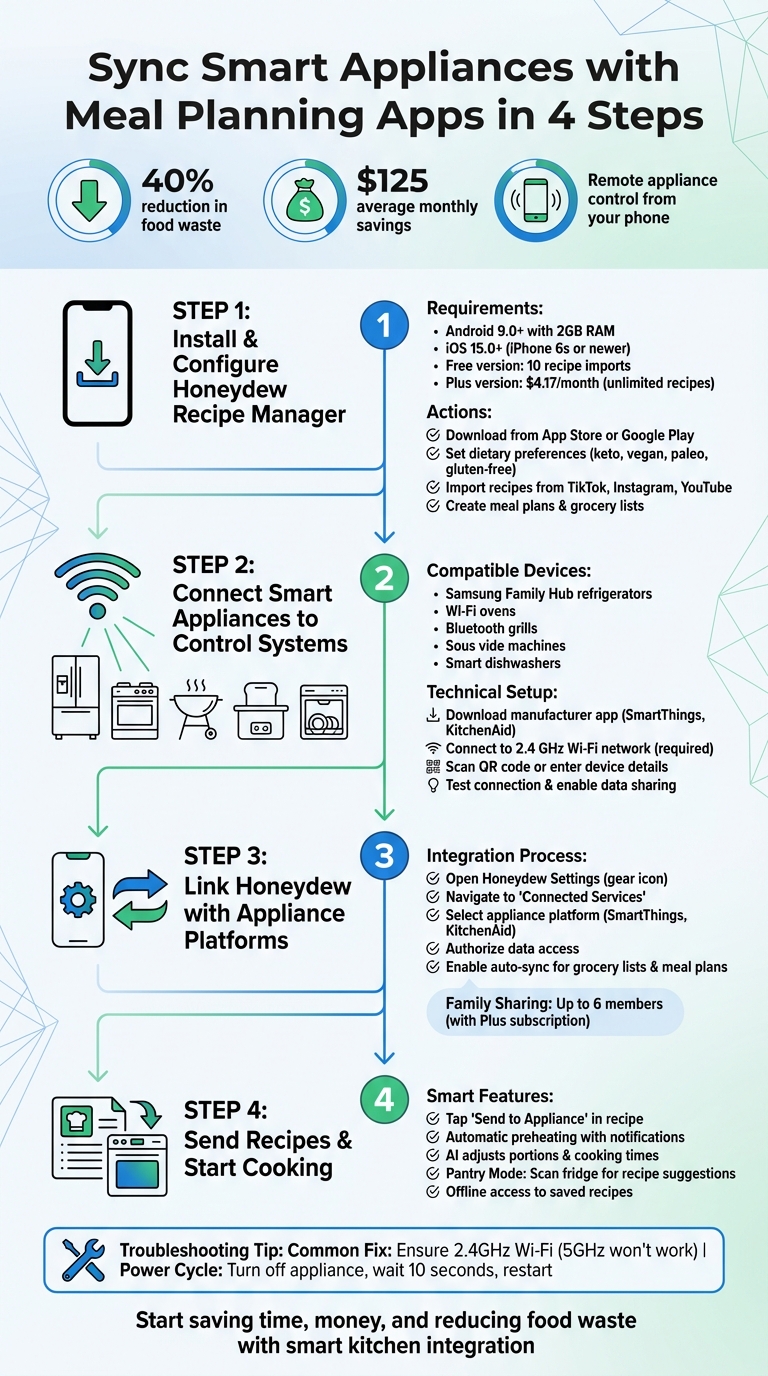
4-Step Guide to Syncing Smart Appliances with Meal Planning Apps
What You Need Before Getting Started
Before diving in, make sure your kitchen devices are compatible with the Honeydew Recipe Manager.
Compatible Smart Appliances and Systems
Honeydew Recipe Manager connects with a variety of smart kitchen devices. This includes Samsung Family Hub refrigerators, Wi-Fi ovens, Bluetooth grills, sous vide machines, and smart dishwashers. These devices integrate seamlessly through platforms like SmartThings.
Most of these appliances rely on centralized control systems, with Samsung SmartThings being a key example. To get started, you’ll need both the Honeydew app and the corresponding control app for your appliance installed on your phone. For instance, if you’re using a Samsung device, the SmartThings app will act as the bridge between Honeydew and your appliance.
Once your apps are set up, check that your devices meet the necessary technical specifications to ensure smooth integration.
Technical Requirements
Your mobile device must meet the following criteria:
- Android devices: Android 9.0 or higher with at least 2GB of RAM.
- Apple devices: iOS 15.0 or newer, supported on models like iPhone 6s or iPad mini 4 and later.
Both your phone and smart appliance should be connected to the same stable Wi-Fi network. Samsung appliances, in particular, require a 2.4 GHz Wi-Fi connection and at least three receiving antennas for reliable connectivity.
Additionally, you’ll need active accounts for both Honeydew Recipe Manager and your appliance’s control platform. For instance, a Samsung account is required for SmartThings, while a KitchenAid account may be necessary for their devices. Finally, make sure your appliance firmware is up to date - this helps unlock integration features and avoids syncing problems.
Step 1: Install and Configure Honeydew Recipe Manager
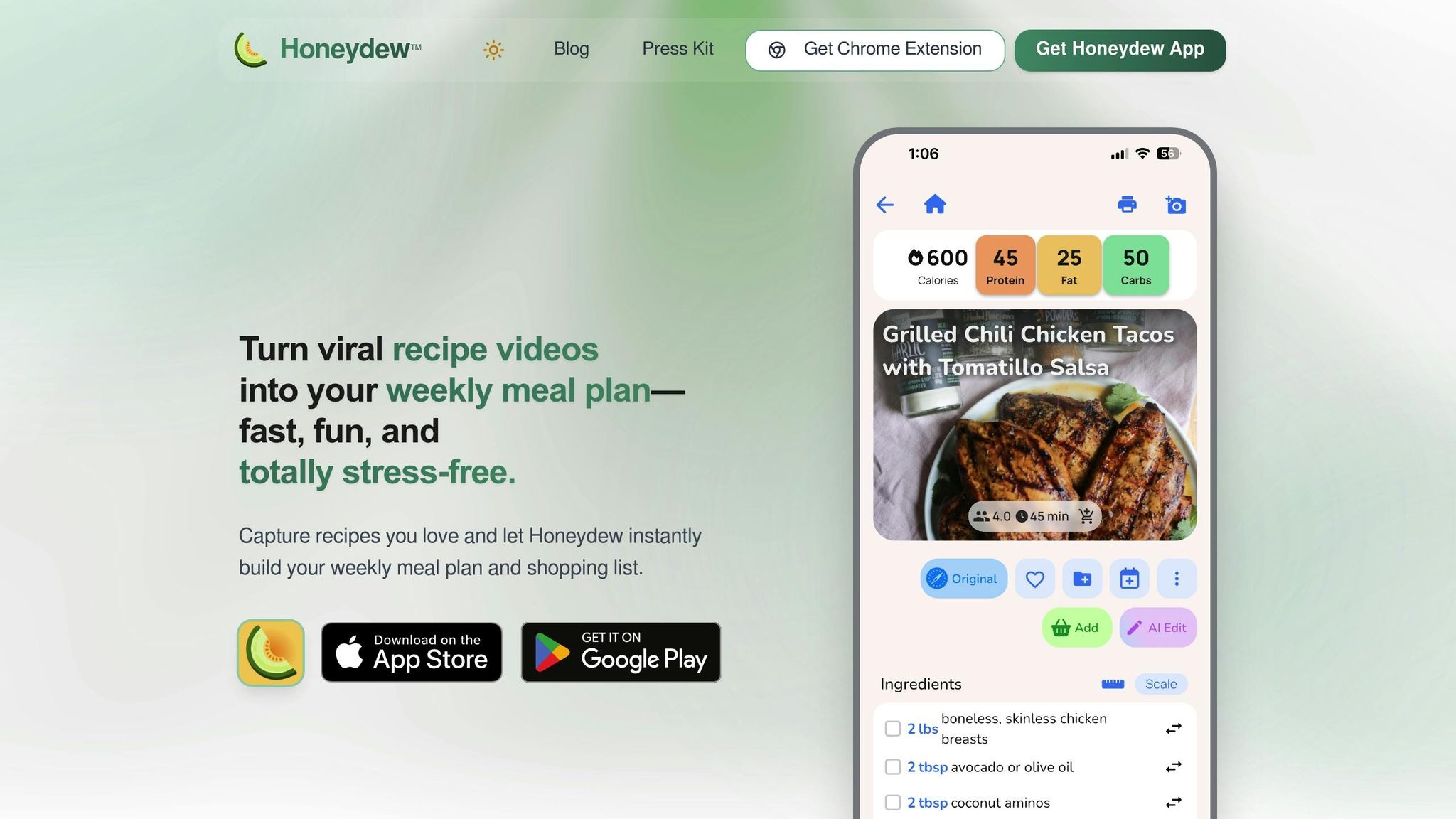
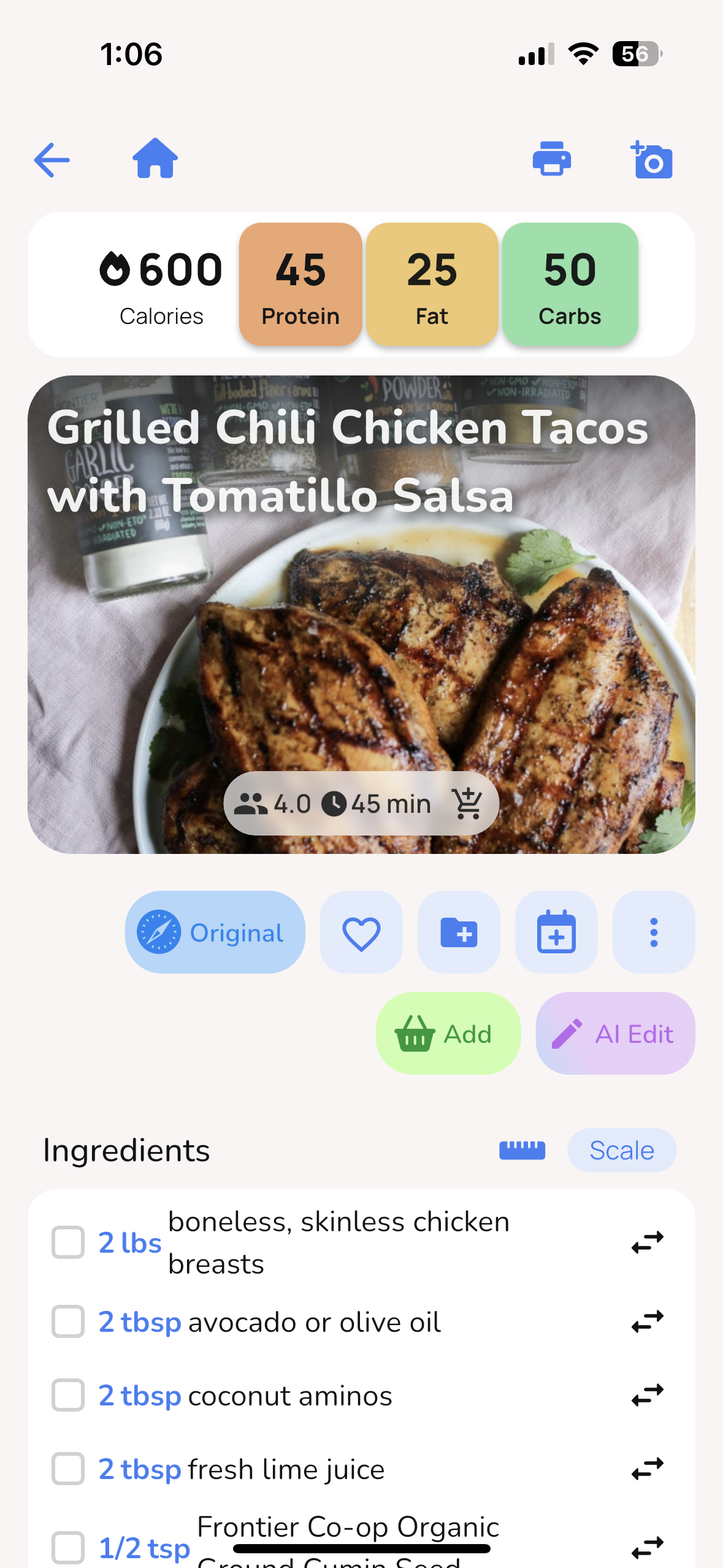
Installing the Honeydew Recipe Manager is quick and straightforward. The app is available for both iOS and Android devices, making it easy to access no matter what platform you use.
Download and Install the App
You can download the app for free from the App Store or Google Play. If you're an iPhone or iPad user, head to the App Store and search for "Honeydew: Recipe Manager" or "Honeydew: Capture Recipes." Android users can find it by searching the same terms in the Google Play Store. The app has excellent reviews on both platforms.
Before downloading, check that your device meets the required operating system version. Once installed, you can start with the free version, which allows up to 10 recipe imports. For those who need more, upgrading to Honeydew Plus - starting at $4.17 per month - unlocks unlimited recipe storage and advanced AI tools. After installation, open the app to set up your profile and customize your dietary preferences.
Set Up Your Profile and Preferences
When you first open the app, you'll be prompted to create a user profile and define your dietary preferences. Whether you're following a keto, vegan, paleo, or gluten-free diet, Honeydew's AI adjusts recipe recommendations to align with your needs. It also ensures that the recipes you save or share with connected appliances match your preferences.
The app’s recipe import feature makes building your digital cookbook effortless. Simply import recipes from Instagram and TikTok, YouTube, or any recipe website by pasting the URL. Honeydew’s AI will automatically extract the ingredients and cooking steps for you. Once your recipes are organized, you’re ready to create your first grocery list and meal plan.
Create Your First Grocery List and Meal Plan
Start by setting up your initial meal plan. Use the app’s intuitive calendar to schedule recipes for the week. Honeydew’s AI can even generate a full weekly meal plan for you in seconds, helping to cut household food waste by up to 40% and potentially saving you around $125 per month.
After finalizing your meal plan, the app creates a grocery list that’s neatly sorted by store sections. Thanks to its Instacart integration, you can order all your ingredients online with just one click. Need inspiration for dinner tonight? Try the Pantry Mode feature - snap a photo of your fridge contents, and the AI will suggest recipes based on what you already have. If you own a smart refrigerator, this feature integrates seamlessly, making meal prep even easier.
Step 2: Connect Smart Appliances to Their Control Systems
To sync recipes with your smart kitchen devices, you first need to connect each appliance to its manufacturer's control app. This step lays the groundwork for recipe sharing and remote control options, making meal prep more convenient.
Add Appliances to Control Apps
Begin by downloading the control app that corresponds to your appliance brand. For instance, Samsung appliances use the SmartThings app, while KitchenAid devices require the KitchenAid app. Once you've installed the app, create an account with the manufacturer. This step is essential for linking your appliances and unlocking remote features.
After logging in, go to the "Devices" tab in the app. Most apps include a "Scan nearby" or "Scan QR code" feature to automatically detect appliances on your Wi-Fi network. Before scanning, ensure both your phone and the appliance are connected to the same Wi-Fi network - this is crucial for successful pairing. If the app doesn’t detect your appliance automatically, you may need to activate manual connection mode. For example, Samsung refrigerators display "AP" on the temperature panel when they’re ready to connect.
Look for the appliance's identification details, which are often on a sticker inside the door or on the back. This information typically includes a QR code, SAID, MAC address, or an 11-digit serial number. Follow the app's prompts to enter these details and connect the appliance to your home Wi-Fi. Once the connection is established, test the appliances and enable data sharing with Honeydew.
Test Connections and Enable Sharing Features
After linking your appliances, confirm the connection by checking if they appear in the app’s "Devices" or "Life" tab. Test the setup by performing simple tasks like remotely checking your refrigerator's temperature or preheating your oven.
To enable data sharing with Honeydew, navigate to the "Account" or "Settings" section of the control app. Look for options such as "Appliances", "Connected Services", or "My Appliances." Select "Authorize" or "Connect" to allow third-party data sharing. For smart ovens and ranges, you might also need to manually enable "Remote Start" or "Remote Control" on the appliance itself for safety reasons. Once authorized, meal planning apps can send cooking instructions directly to your devices. This integration is a key component of AI meal planning, which helps optimize your kitchen workflow.
Step 3: Link Honeydew Recipe Manager with Appliance Platforms
Once your appliances are connected, the next step is linking the Honeydew Recipe Manager. This allows you to send recipes, sync grocery lists, and coordinate meal plans seamlessly.
Enable Integration Settings in Honeydew
After setting up your appliance connections, it's time to integrate Honeydew with your smart kitchen systems.
Start by opening the Honeydew app and tapping the gear icon in the top-right corner to access Settings. Navigate to the "Connected Services" or "Appliances" section. This is where you’ll enable data sharing between Honeydew and your kitchen devices. Make sure your device is running iOS 17.0, iPadOS 17.0, or macOS 14.0 to access the latest syncing capabilities.
Select "Connect Appliances" and pick your appliance platform, such as SmartThings or KitchenAid, from the list. Log in using the credentials you set up in Step 2. When prompted, authorize Honeydew to access your appliance data by tapping "Authorize." If you’re subscribed to Honeydew Plus (starting at $4.17/month), you can also enable Household Sharing here, allowing up to six family members to sync their data.
Once authorization is complete, your appliances and Honeydew will be fully connected and ready to exchange updates.
Sync Grocery Lists and Meal Plans
With your appliances linked, head back to the Honeydew app’s main screen and choose either "Meal Plan" or "Grocery List." You’ll notice a new sync icon at the top of these sections, signaling that Honeydew is now actively sharing data with your smart appliances. Turn on the "Auto Sort" feature in settings to have your grocery list automatically organized by store sections.
When you add recipes to your meal plan or generate a grocery list from imported recipes, Honeydew will automatically update your connected appliances. For a more personalized experience, use Pantry Mode to let the app suggest recipes for picky eaters based on the ingredients you already have on hand. This integration simplifies meal planning and ensures you can make the most of what’s in your kitchen.
Your smart appliances will now display your scheduled meals and can even receive cooking instructions directly from Honeydew. While syncing requires an internet connection, your saved recipes will still be accessible offline.
Step 4: Send Recipes to Appliances and Start Cooking
Honeydew's AI takes the guesswork out of cooking by automatically adjusting recipes for portion sizes, cooking times, and appliance types. Here's how to connect your recipes to your smart appliances and get started.
Sending Recipes to Smart Appliances
First, make sure your appliance is ready for remote commands. For Café ranges, press and hold the Remote Enable button until the WiFi icon starts flashing. If you're using KitchenAid, press Remote Enable until the app setup prompt appears.
Once your appliance is set up, open a recipe in Honeydew and tap Send to Appliance. Select your device, and Honeydew will transfer all cooking instructions - like temperature and timers - directly to it. Your appliance will even preheat automatically, and you'll get a push notification when it reaches the correct temperature. To make monitoring easier, the "No screen lock" feature ensures your display stays active throughout the cooking process.
If you're cooking with a smaller appliance, like a countertop oven, Honeydew’s smart scaling feature adjusts recipe portions and cooking times to fit your device. For example, a recipe originally designed for a full-sized oven will be recalculated to suit the smaller capacity seamlessly.
Pantry Mode for Recipe Suggestions
Honeydew's Pantry Mode is a handy tool for making the most of what you already have. Scan or manually enter the ingredients in your fridge, and the AI will suggest recipes tailored to your inventory. This feature not only saves money but also helps cut down on food waste. Once you find a recipe you like, tap it to view the full instructions and send it to your appliance. Just make sure your appliance is connected to a 2.4GHz WiFi network for smooth operation.
Fixing Common Syncing Problems
Even when everything is set up correctly, syncing issues can sometimes pop up. These glitches are often tied to network settings or appliance configurations, but the good news is they’re usually simple to fix.
Fix Connection Errors
As mentioned earlier, having the right configuration and network setup is key for syncing. If your smart appliance isn’t appearing in Honeydew’s integration settings, the issue might be related to network frequency. According to KitchenAid’s setup guide: “You must be on a 2.4GHz network frequency, 5GHz will not work. Please connect your phone to the Network SSID that supports 2.4GHz band”.
Start by ensuring your appliance is fully set up in its native app. Then, try a quick power cycle: turn the appliance off, wait 10 seconds, and switch it back on.
Double-check that your router is using WPA2 security, and keep important details like the appliance’s QR code, SAID, and MAC address handy - they might be needed to re-establish the connection. If error messages like "23ACM Failed to Connect to Device" or "No Device Found" appear, take note of them as they can guide further troubleshooting steps.
Once connection issues are resolved, you’ll be better prepared to manage offline access when network interruptions occur.
Access Data During Outages
Once your appliances are connected, Honeydew’s offline access feature ensures you’re not left stranded during Wi‑Fi outages. The app automatically stores your recipes locally on your device, so you can still view saved meal plans and cooking instructions even without an internet connection. To make the most of this feature, download the recipes you’ll need ahead of time.
It’s also a good idea to keep printed copies of your must-have recipes. This way, you won’t be stuck mid-recipe if your device runs out of battery or the internet goes down unexpectedly. To avoid kitchen mishaps, keep your devices charged and consider using a tablet stand to protect against spills.
If you notice any mismatched data between devices after reconnecting, ensure both your phone and appliance are on the same Wi‑Fi band. Then, manually sync through Honeydew’s settings to get everything back in order. This offline functionality keeps your meal planning smooth and disruption-free.
Conclusion
Pairing smart appliances with the Honeydew Recipe Manager transforms how you plan meals, shop for groceries, and cook at home. With AI-driven meal planning and seamless smart appliance integration, you can preheat your oven remotely, get real-time cooking alerts, and even adjust recipes automatically - all while cutting down on food waste and saving money on groceries. It’s a one-stop solution that ties together every part of your cooking routine.
The app's real advantage is its ability to centralize your kitchen tasks. You can import recipes from TikTok, Instagram, or any website, create grocery lists sorted by store aisle, and send step-by-step cooking instructions straight to your appliances. Users have been quick to praise these features.
James L. says: "The smart grocery lists save me hundreds of dollars a month. I love how it suggests recipes based on what I already have!".
From using Pantry Mode to snap a photo of your fridge for instant recipe ideas to scaling servings on the fly for surprise guests, Honeydew takes care of the details so you can focus on enjoying the cooking process. Plus, its family-sharing feature allows up to six members to stay in sync, avoiding duplicate purchases and wasted ingredients.
Digitize your recipe collection and connect your smart appliances to unlock a more efficient, stress-free kitchen experience. And with offline access keeping your recipes handy even without Wi-Fi, you’re ready for anything the kitchen throws your way.
FAQs
How can I check if my smart kitchen appliances work with Honeydew Recipe Manager?
If you’re wondering whether your smart kitchen appliances work with Honeydew Recipe Manager, the first step is to check if they’re Wi-Fi or Bluetooth-enabled and support common smart home connectivity standards. Honeydew integrates with various smart appliances, such as AI-powered ovens and smart refrigerators, to make meal planning and cooking easier.
To confirm compatibility, refer to your appliance’s user manual or visit the manufacturer’s website. Many smart devices, like Wi-Fi-equipped ovens or advanced refrigerators, are designed to sync smoothly with apps like Honeydew. Still unsure? Reach out to the appliance manufacturer’s support team for clarification on whether their product works with Honeydew’s platform.
What can I do if my smart appliance won’t connect to the Honeydew app?
If your smart appliance isn’t connecting to the Honeydew app, here’s what you can do:
- Check your Wi-Fi connection: Ensure your appliance is powered on and connected to your home Wi-Fi. Double-check that your network is stable and functioning properly.
- Confirm compatibility: Verify that your appliance supports the Honeydew app and is set up for Wi-Fi connectivity according to the manufacturer’s guidelines.
- Restart devices: Power off and restart both your appliance and your smartphone or tablet. Then, attempt to reconnect using the Honeydew app.
- Update the app: Make sure you’re using the latest version of the Honeydew app. Head to the App Store or Google Play to install any available updates.
- Reset Wi-Fi settings: If problems persist, reset the Wi-Fi settings on your appliance following the manufacturer’s instructions, then reconnect it to the app.
Still having trouble? Refer to your appliance’s user manual or reach out to the manufacturer’s support team for additional help. These steps usually resolve most connection problems efficiently.
Can I use Honeydew Recipe Manager offline?
Honeydew Recipe Manager depends on an internet connection for several key features, including importing recipes, syncing your data, generating grocery lists, and accessing meal plans stored in the cloud. That said, certain tasks, like viewing recipes you've already saved or managing shopping lists you've downloaded, can still be done offline - provided the data is already stored on your device.
To make the most of Honeydew Recipe Manager and enjoy all its features seamlessly, it's best to stay connected to the internet.