How to Use Alexa for Hands-Free Cooking
• Updated
Cooking can be messy, and juggling tasks while following recipes isn't easy. Alexa simplifies this by turning your kitchen into a voice-controlled assistant. Here's what you can do:
- Set Multiple Timers: Name and manage multiple timers simultaneously.
- Control Smart Appliances: Preheat ovens, microwave food, and more using voice commands.
- Access Recipes: Get step-by-step guidance, substitutions, and conversions without touching a device.
- Streamline Meal Planning: Use tools like Honeydew to sync recipes, grocery lists, and meal plans with Alexa.
With Alexa, you can manage your kitchen entirely hands-free, saving time and reducing interruptions.
Cook'n for Alexa
Setting Up Alexa for Your Kitchen
Step-by-Step Guide to Setting Up Alexa for Hands-Free Cooking
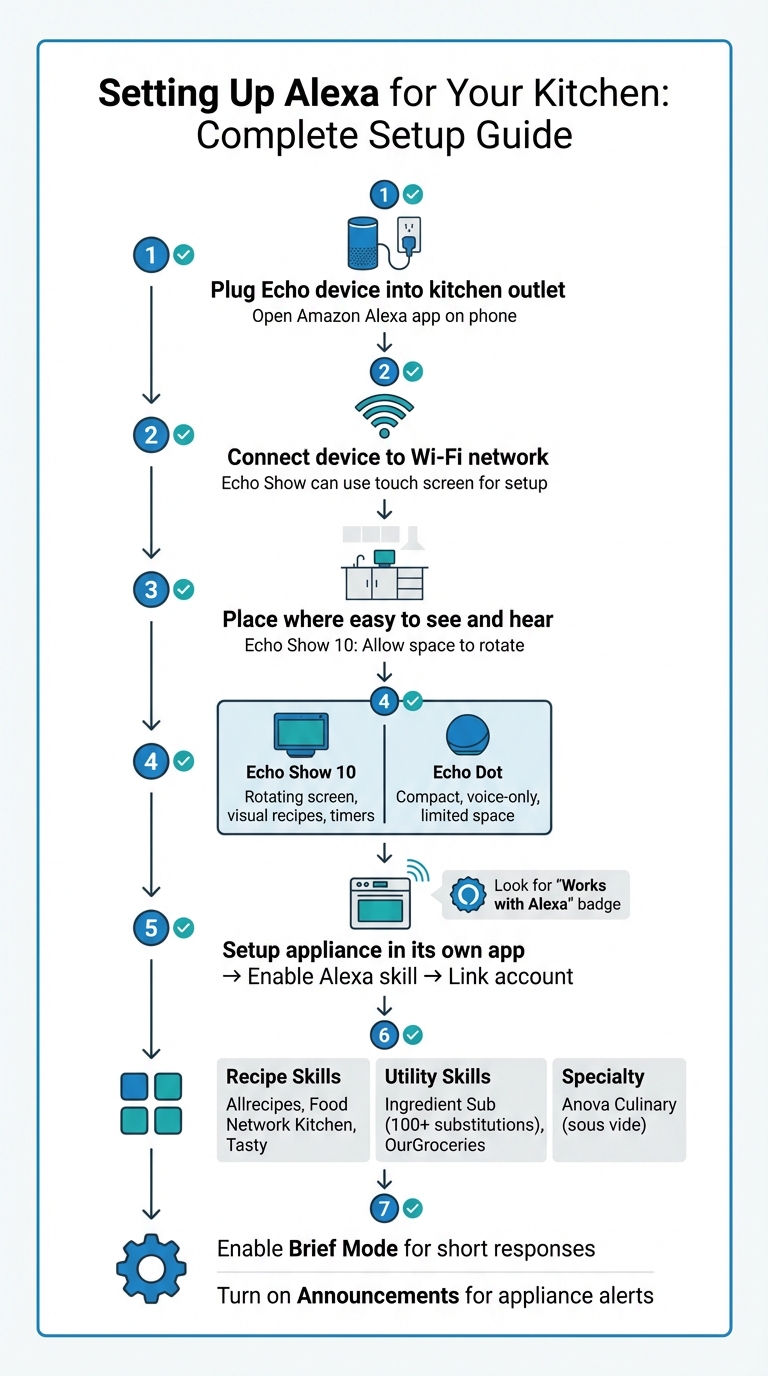
Getting Alexa ready for your kitchen is quick and straightforward. Start by plugging your Echo device into a kitchen outlet and opening the Amazon Alexa app on your phone. Connect the device to your Wi‑Fi network. If you're using an Echo Show, you can complete the setup directly on its touch screen. Place the device where it’s both easy to see and hear from your main prep areas. If you have an Echo Show 10, make sure there’s enough space for it to rotate and keep the screen visible as you move around. Finally, pick the Alexa device that best fits your kitchen’s layout and your cooking needs.
Choosing the Right Alexa Device
The Echo Show 10 is a standout option for kitchens. Its rotating screen ensures you can see recipes, timers, or video calls no matter where you are in the room. Influencer stevenfingar highlights its versatility, noting how it simplifies everything from finding recipes to staying connected while cooking. If counter space is limited, the Echo Dot is a compact alternative. While it offers the same voice functionality, it lacks the visual aids - like on-screen recipe guides and timers - that make the Echo Show models so handy. Once your device is in place, you can take things up a notch by connecting smart appliances.
Connecting Smart Kitchen Appliances
Integrating smart ovens, microwaves, and refrigerators with Alexa is simple. Start by setting up the appliance through its own app and connecting it to Wi‑Fi. Then, enable its Alexa skill in the Alexa app and link your account to securely connect the appliance to your Amazon account. Alexa will then run a "Discovery" process to figure out what your appliance can do, like preheating an oven or defrosting food in a microwave. When shopping for appliances, look for the "Works with Alexa" badge to ensure compatibility.
Enabling Alexa Skills for Cooking
Alexa skills can make your kitchen even more efficient. For step-by-step cooking guidance, enable recipe skills like Allrecipes, Food Network Kitchen, or Tasty, which let you pause or rewind instructions hands-free. The Ingredient Sub skill provides over 100 ingredient substitutions, while OurGroceries syncs shopping lists across all your devices. If you’re into sous vide cooking, the Anova Culinary skill lets you control precise temperatures with voice commands. To keep things streamlined, turn on "Brief Mode" in the settings so Alexa responds with short sounds instead of lengthy replies during busy moments. You can also enable "Announcements" so Alexa notifies you when the oven is preheated or the microwave cycle is done. With these skills, your kitchen becomes a seamless, hands-free cooking hub.
Using Alexa for Hands-Free Cooking
With Alexa in your kitchen, tackling cooking tasks becomes a breeze. From managing timers to controlling appliances and finding recipes, Alexa keeps your hands free and your cooking on track. Let’s dive into how you can make the most of this voice assistant in your culinary adventures.
Setting Timers and Alarms
Juggling multiple dishes? Alexa’s got you covered with multiple timers running at the same time - a lifesaver when you’re cooking a feast. You can even name each timer for better organization. Try saying, "Alexa, set a pasta timer for 10 minutes" or "Alexa, set a roast timer for 45 minutes".
Need to tweak your timers? No problem. You can say, "Alexa, add 5 minutes", or ask, "Alexa, how much time is left on the pasta timer?" to stay on top of things. Want a quick overview of all active timers? Just ask, "Alexa, how much time is left?" or, if you’re using an Echo Show, say, "Alexa, show my timers", for a handy visual display.
Controlling Appliances with Voice Commands
Smart appliances take convenience to the next level, and Alexa makes controlling them effortless. Preheat your oven by saying, "Alexa, preheat the oven to 350 degrees", or set it to bake with, "Alexa, bake for 10 minutes". If you need more time, just ask Alexa to add it, and when the timer goes off, silence it with a quick, "Alexa, tell my oven to stop beeping".
Microwaves are just as easy to manage. Use commands like, "Alexa, microwave for 1 minute", or specify power levels with, "Alexa, cook at medium for 3 minutes". For common tasks, preset commands such as "Alexa, reheat 1 cup of coffee" or "Alexa, microwave the frozen pizza" simplify things further. And if you’re defrosting, Alexa can help calculate the time - just say "Defrost the chicken", and she’ll ask for the weight to get it right.
Accessing Recipes Hands-Free
Alexa isn’t just about timers and appliances - it’s also your personal recipe assistant. Ask for ideas by saying, "Alexa, give me a recipe for beef casserole", or "Alexa, show me a quick Italian recipe". Once you’ve picked a recipe, Alexa guides you step-by-step. Use commands like "next step", "pause", or "go back a step" to keep things moving at your pace.
Need a quick ingredient swap? Just ask, "Alexa, what’s a substitute for buttermilk?". On Echo Show devices, recipes are even more interactive, with rotating screens that follow you around the kitchen, displaying recipe cards or instructional videos. Plus, Alexa can handle conversions, so if you’re stumped by a measurement, just ask, "Alexa, how many grams are in a tablespoon?".
With Alexa by your side, cooking feels less like a chore and more like a seamless experience.
Streamlining Meal Planning with Alexa and Honeydew Recipe Manager
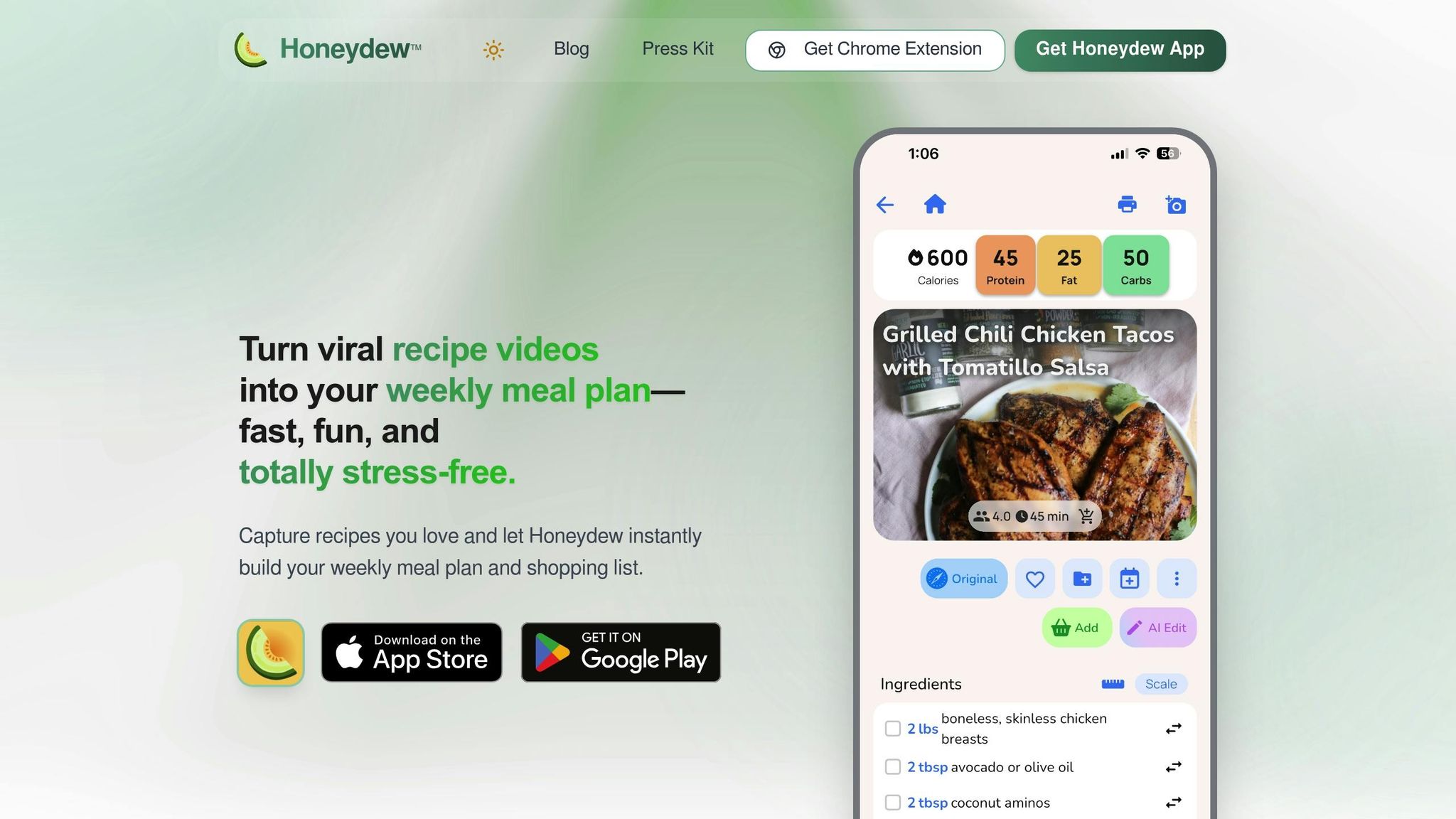
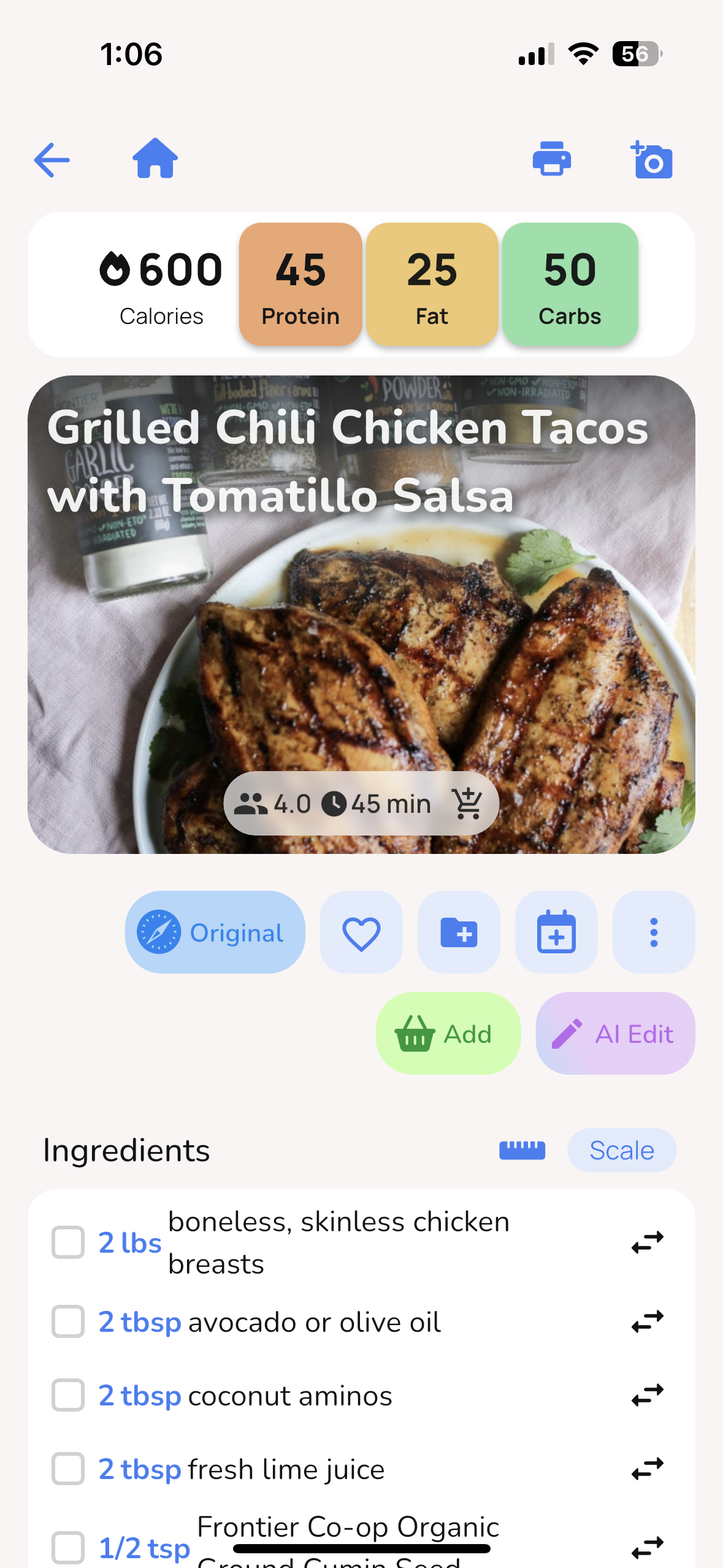
Taking meal prep to the next level, Honeydew Recipe Manager pairs perfectly with Alexa to simplify your kitchen routine. Beyond Alexa’s cooking commands, Honeydew combines meal planning, grocery shopping, and voice-controlled cooking into one cohesive experience. With around 270,000 recipes saved monthly on the platform [18, 19], it’s become a favorite tool for home cooks aiming to make their kitchen time more efficient.
Import Recipes and Plan Meals
Honeydew makes capturing recipes from social media a breeze. Found a viral dish on TikTok, Instagram, Pinterest, or YouTube? Just tap the share icon and select Honeydew from the options. The app’s AI instantly grabs the ingredients, instructions, and prep times for you. Even recipes from Instagram Stories can be saved by taking a screenshot and using the "Import from Image" feature.
To make things even easier, Honeydew automatically converts measurements to U.S. standards - think milliliters to cups, Celsius to Fahrenheit, and even renaming ingredients like "coriander" to "cilantro." Once imported, you can drag recipes into a weekly calendar to create your meal plan, which syncs directly with your grocery list.
Generate Grocery Lists and Order Ingredients
Honeydew organizes all your ingredients into one tidy list, combining quantities when recipes overlap. For instance, if two meals call for chicken, the app calculates the total amount you need.
You can also manage a digital pantry by scanning barcodes, entering items manually, or uploading receipts. The app suggests recipes based on what’s already in your pantry and flags items nearing expiration, helping reduce waste.
Ordering groceries is just as easy. With one click, you can send your list to Instacart for delivery, streamlining the entire shopping process.
AI Meal Planning and Substitution Features
Honeydew’s AI can quickly create a personalized weekly meal plan based on your preferences. Missing an ingredient? No problem. The smart substitution feature finds alternatives for you and updates your grocery list automatically.
For $4.17/month, Honeydew Plus unlocks perks like unlimited recipe imports, advanced AI meal planning, and household sharing for up to six family members. This means everyone can stay in sync with shared meal plans and grocery lists in real time.
Once your recipes are saved in Honeydew, Alexa steps in to make cooking even easier. Using Alexa skills, you can access your recipes hands-free, follow step-by-step instructions, set multiple timers, and even add last-minute items to your shopping list - all without touching your phone. This integration ensures your recipes and meal plans are always accessible, keeping your hands free and your kitchen running smoothly.
Troubleshooting Alexa Cooking Features
Even with everything set up correctly, Alexa can sometimes run into hiccups. Whether it's a connectivity issue, a problem with a skill, or a configuration oversight, most of these challenges are easy to fix. Here's how you can troubleshoot common problems and keep your hands-free cooking experience running smoothly.
Resolving Connectivity Problems
If Alexa suddenly goes quiet, start by checking if the microphone is muted - look for the red light. You can also ask, "Alexa, are you online?" to confirm its connection status.
A quick restart often clears up connection issues. Unplug your Echo device for about 30 seconds, then plug it back in using the original power cable. If a smart appliance is acting up, do the same for that device. Keep in mind that kitchen appliances like microwaves can interfere with Wi-Fi signals, so it’s best to position your Echo away from them.
Most smart kitchen devices work exclusively on 2.4 GHz Wi-Fi networks. If you’ve recently updated your router settings or changed your Wi-Fi password, make sure to update the details in the Alexa app (Devices > [Your Device] > Settings). Also, try keeping your Echo within 30 feet of the router, but at least 6 feet away to avoid interference.
If Alexa is connected but still not working as expected, the issue might lie with the skills or commands.
Fixing Skill and Command Errors
If your appliance works fine through its own app but not with Alexa, try disabling and then re-enabling the related Alexa Skill. For third-party devices, ensure you’ve completed the initial setup in the manufacturer’s app before linking it to Alexa.
If you encounter an "Expired Authorization Credential" error, relink the manufacturer account in the Alexa app. Some appliances, like certain cooking devices, may also require you to manually enable a "Remote Start" feature before Alexa can control them. Using precise commands - such as "Alexa, defrost three pounds of meat" or "Alexa, stop the microwave" - can also improve recognition and functionality.
Once skill-related issues are resolved, take steps to enhance Alexa’s overall performance.
Optimizing Alexa for Better Performance
Regular updates are key. Keep your Alexa app, Echo device, and all connected appliances updated with the latest firmware. If a device shows up as "UNREACHABLE" in the Alexa app's device health status, it’s likely offline or disconnected from its hub.
For persistent problems, consider a factory reset. For example, to reset an Amazon Smart Plug, press and hold the button for 12 seconds. If your router has separate 2.4 GHz and 5 GHz bands, try switching your Echo device to the other network, as this can resolve sporadic connectivity issues.
Conclusion
Using Alexa for hands-free cooking turns your kitchen into a more efficient and enjoyable space. Whether it’s setting multiple timers by name or preheating your oven with just your voice, Alexa simplifies the tasks that often slow you down. Need a quick unit conversion or step-by-step recipe guidance? Alexa has you covered, letting you focus on your cooking instead of juggling devices.
"Using voice means fewer buttons for the customer to press and convenient cooking control while their hands are busy or messy." - Ahmed El Araby, Alexa Developer Blog
Take your cooking game up a notch by pairing Alexa with tools like the Honeydew Recipe Manager. With this combo, you can import recipes straight from social media, access them hands-free, and benefit from AI-powered meal planning. This includes weekly menu suggestions, automatically organized grocery lists, and smart ingredient swaps. Plus, the screen-stays-on feature eliminates the need for constant tapping, and household sharing for up to six members makes collaborative meal planning a breeze.
Start small with basic cooking skills and a couple of smart appliances, then explore advanced features like personalized ingredient substitutions, tailored routines, and visual aids on Echo Show. This setup not only saves time but also reduces stress, turning your kitchen into a voice-controlled hub for smooth and stress-free cooking.
FAQs
How can I connect my smart kitchen appliances to Alexa for hands-free cooking?
To connect your smart kitchen appliances to Alexa, just follow these steps:
- Set up the Alexa app: Download the Alexa app on your smartphone and log in with your Amazon account. Ensure that both Bluetooth and location services are turned on.
- Connect your appliance to its app: Use the appliance’s dedicated app (like the KitchenAid app) to connect it to your home Wi-Fi network. Most appliances require a 2.4 GHz Wi-Fi connection, so double-check your setup.
- Enable the Alexa skill for your appliance: Say, “Alexa, enable [appliance brand] skill,” or open the Alexa app, go to Devices, and select Add Device to locate and enable the skill.
- Link your accounts: When prompted, log in to the appliance’s app through Alexa. Linking the accounts ensures Alexa can communicate with and control your appliance.
- Discover your device: In the Alexa app, navigate to Devices → Add Device → Smart Home. Alexa will scan for and add your appliance to the list of connected devices.
Once everything is set up, you can start using voice commands like, “Alexa, preheat the oven to 350°F,” or “Alexa, microwave for 1 minute.” To make cooking even easier, consider pairing Alexa with Honeydew Recipe Manager. This lets you manage recipes, plan meals, and tackle kitchen tasks hands-free for a smoother cooking experience.
How can Alexa make cooking easier and more hands-free?
Alexa can transform your time in the kitchen, making cooking smoother and more organized. Here are some of the top ways Alexa can help you out while you're whipping up meals:
- Grocery list help: Need to remember an ingredient? Just say, "Alexa, add eggs to my shopping list", and access the list on your phone when you're at the store.
- Quick unit conversions: No need to pause and Google conversions. Ask Alexa, "How many grams are in a tablespoon?" or "How many ounces are in a cup?" and get the answer instantly.
- Manage multiple timers: Juggling several dishes? Alexa has your back. Name your timers for clarity, like "Alexa, set a pizza timer for 10 minutes" or "Alexa, set an oven timer for 45 minutes."
- Control smart appliances: If you’ve got Alexa-enabled gadgets, you can use voice commands to handle them. For example, preheat the oven to 375°F or start brewing coffee without lifting a finger.
- Step-by-step recipe guidance: Activate recipe skills to find dishes or follow instructions hands-free. Whether you’re searching by ingredient or cuisine, Alexa can walk you through the recipe step by step.
These tools not only save you time but also keep your hands free for cooking, making the entire process less stressful and a lot more enjoyable.
How can I fix common Alexa issues while cooking?
If Alexa isn’t cooperating in the kitchen, don’t worry - these straightforward fixes can often get things running smoothly again:
- Check your connections: Confirm that your Alexa device, Wi-Fi router, and kitchen appliance are all on the same 2.4 GHz network and securely plugged in. A loose connection can cause unexpected hiccups.
- Restart everything: Sometimes, a simple reboot does the trick. Unplug your Echo device and the appliance, wait about 30 seconds, then plug them back in.
- Verify skills are active: Open the Alexa app and head to Skills & Games. Check if the relevant skill (like KitchenAid) is enabled. If it’s already on, try disabling and re-enabling it for a quick refresh.
- Rediscover devices: Navigate to Devices → Add Device → Scan for Devices in the Alexa app, or just say, “Alexa, discover devices.” This ensures Alexa recognizes everything connected.
- Update your software: Double-check that both the Alexa app and your appliance’s companion app are running their latest versions. Updates often fix compatibility issues.
If none of these steps solve the problem, consider resetting your appliance to its factory settings or reaching out to the manufacturer’s support team. These tips usually resolve most Alexa-related glitches, so you can get back to cooking without interruptions!