Voice Commands for Instant Pot Cooking
• Updated
When cooking gets busy, controlling your Instant Pot with voice commands can save time and effort. With Alexa or Google Assistant, you can manage cooking modes, set timers, and even get recipe ideas - all hands-free. Here's what you need to know:
- Setup: Only WiFi-enabled models like the Instant Pot Smart WiFi or Pro Plus WiFi support voice commands. Use the Instant Connect app to pair your device with Alexa or Google Assistant.
- Alexa Commands: Start cooking modes, set timers, check status, or get recipe suggestions by enabling the "Instant Cook Skill."
- Google Assistant Commands: Use simple phrases to control cooking programs, set timers, or ask for recipe ideas.
- Troubleshooting: Ensure all devices are on the same WiFi network, update the Instant Connect app, and check your assistant's microphone or command phrasing.
- Safety Tips: Voice commands don’t control the steam release valve, so always double-check settings and follow safety guidelines.
Pairing your Instant Pot with apps like Honeydew Recipe Manager can further simplify meal prep by organizing recipes, creating grocery lists, and supporting voice-guided cooking. Ready to upgrade your kitchen routine? Start using voice control today!
Setting Up Voice Control for Your Instant Pot

To use voice control with your Instant Pot, you'll need a compatible model - either the Instant Pot Smart WiFi or the Pro Plus WiFi. Older models without built-in WiFi can't be upgraded for this feature. Start by downloading the Instant Connect app (previously known as Instant Brands Connect), which is essential for pairing your Instant Pot before linking it to Alexa or Google Assistant.
Connecting to Alexa
Before you begin, make sure Bluetooth is enabled, your WiFi password is handy, and your Instant Pot is plugged in and showing "OFF." These steps are necessary for all voice assistant setups. Once you're ready, follow these instructions:
- Pair your Instant Pot with the Instant Connect app. For the Pro Plus model, press and hold the WiFi icon until it beeps and displays "APP."
- After pairing is complete, open the Amazon Alexa app and enable the "Instant Cook Skill."
- Choose a simple name for your Instant Pot to ensure Alexa recognizes it easily.
For example, a user from The Spicy Apron shared this tip:
"Alexa really struggled to find my pot when I called it something else... I finally ended up choosing to name mine 'My Instant Pot' - now it works every time!"
Connecting to Google Assistant

After pairing your Instant Pot with the Instant Connect app, open the Google Home app. Navigate to the "Works with Google" section and search for "Instant Pot." Link your Instant Connect account to Google Home, and you’ll be all set to use voice commands through your Google Nest or Google Home speaker.
Once both assistants are configured, you can confidently control your Instant Pot with simple voice commands.
Common Setup Problems and Solutions
If your voice assistant isn't detecting your Instant Pot, the most common issue is that both devices must be on the same WiFi network. Here are additional troubleshooting steps:
- Restart your Instant Pot: Unplug it for at least 30 seconds, then plug it back in. This often resolves minor glitches.
- Check your voice assistant’s microphone: On Alexa devices, a red light indicates the microphone is muted.
- Update the Instant Connect app: Outdated software can cause syncing issues, so ensure you’re using the latest version.
- Keep devices clean: Dust or debris can interfere with accurate voice recognition.
If commands still aren’t functioning as expected, double-check the exact phrasing required by your voice assistant. You can find this information in the Skills section of the app. Sticking to the recommended command format often resolves the problem.
Alexa Voice Commands for Instant Pot
Once you've set up your Instant Pot, you can control it effortlessly using Alexa. With the Instant Cook Skill enabled, your Alexa-compatible Instant Pot allows for hands-free cooking, making meal prep a breeze with simple voice commands.
Starting Specific Cooking Modes
To start cooking, you can use commands like "Alexa, pressure cook for [time]" or "Alexa, start [mode]" (e.g., meat, beans, rice) for pre-set functions.
For recipe-based cooking, Alexa can guide you step-by-step. After selecting a recipe from platforms like Allrecipes or Epicurious, simply say: "Alexa, let's start cooking." As Alex from The Defined Dish explains:
"Simply say, Alexa, let's start cooking once you've chosen a recipe to create. Once a recipe is selected, Alexa guides you step-by-step."
Need to move through the instructions? Just say "Alexa, next step." Want to make a specific dish? Try "Alexa, cook soup in my Instant Pot" to activate the appropriate cooking function automatically.
You can also manage your cooking process with commands for timers and status updates.
Setting Timers and Checking Status
Timers are easy to configure. For example, you can say "Alexa, set a 20-minute pot roast timer" or "Alexa, set a 6-minute egg timer." Curious about progress? Ask "Alexa, how much time is left on the pot roast timer?"
Need adjustments? Say "Alexa, add 2 minutes" or "Alexa, stop." For smart-enabled models like the Pro Plus Smart, you can even schedule automatic shutdowns with commands like "Alexa, turn off the Instant Pot in 15 minutes." Enable Follow-Up Mode in the Alexa app to issue multiple commands without repeating the wake word.
Requesting Recipe Suggestions
Alexa can pull recipes from top culinary websites. For Instant Pot-specific results, include "Instant Pot" or "pressure cooker" in your request. For example, say "Alexa, find an Instant Pot recipe for chili" or "Alexa, give me a recipe for lentils."
Need ingredient substitutions or conversions? Ask "Alexa, substitute [ingredient]" or "Alexa, how many tablespoons are in a stick of butter?" You can also add items to your grocery list hands-free by saying "Alexa, add [item] to my grocery list," which syncs directly with the Alexa app.
Google Assistant Voice Commands for Instant Pot
Google Assistant makes it easy to control your Instant Pot Smart WiFi model without lifting a finger. All you need is the Instant Connect app (formerly known as the Instant Pot mobile app) and a Google Assistant-enabled device, like a Google Home speaker.
Starting Specific Cooking Modes
To kick off cooking, just say: "Hey Google, set my cooker to rice." This command activates a pre-programmed mode. You can use similar phrases to start other built-in programs, such as steam or pressure cook. Brittany Roston from SlashGear highlights this feature:
"With the Google Assistant support, users can say things like, 'Hey Google, set the program on my cooker to rice.'"
The Instant Connect app, which pairs with your cooker, has received a 4.6/5 star rating on the Google Play Store from over 10,100 reviews. Once your mode is set, managing your cooking time is just as simple.
Setting Timers and Checking Status
Want to keep track of your cooking? Ask "Hey Google, how many minutes are left?" For multiple dishes, you can set named timers like "Hey Google, set a 10-minute timer for pizza" or "set a pasta timer for 8 minutes." If you need to stop a timer, just say "Stop" - no wake word required.
The Instant Pot Smart WiFi also lets you monitor your appliance remotely with real-time updates. Ben Schoon, Senior Editor at 9to5Google, explains:
"The added functionality with the Google Assistant lets them control and check the status of the cooker hands-free with just their voice."
But timers and status checks are just the beginning - Google Assistant can even help you discover new recipes.
Requesting Recipe Suggestions
Need some cooking inspiration? Say "Hey Google, what recipes can I make with potatoes?" or "Hey Google, find Instant Pot recipes for beef stew." These commands pull up Instant Pot-friendly ideas tailored to the ingredients you have. The companion app for the Smart WiFi model offers access to over 750 pre-programmed recipes. Once you pick a recipe, the app can automatically adjust your cooker's settings for time and pressure. Plus, if you need to add items while planning, just say "Hey Google, add chicken broth to my shopping list" to keep everything organized hands-free.
Advanced Commands and Troubleshooting
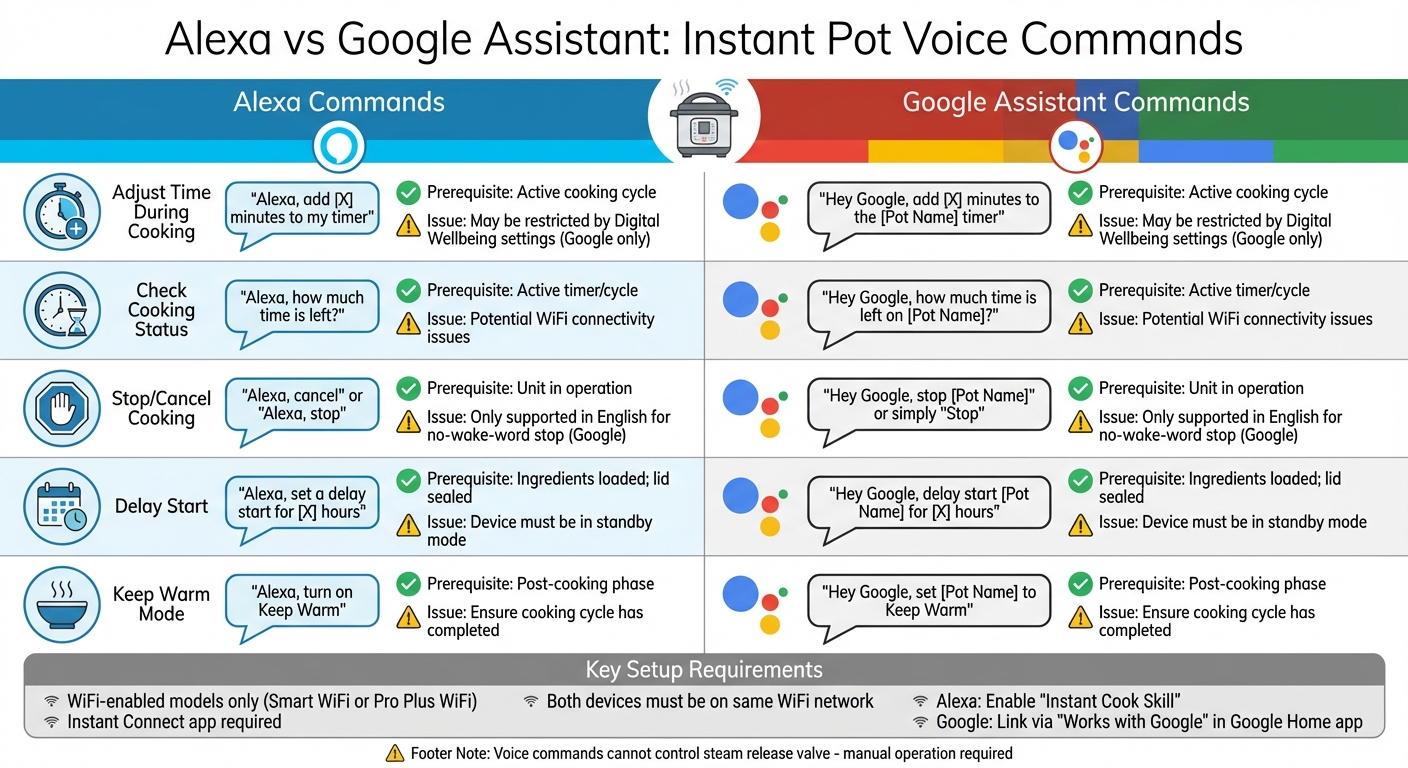
Alexa vs Google Assistant Voice Commands for Instant Pot: Complete Comparison Guide
Once you're comfortable with the basics, these advanced commands can help you get even more out of your Instant Pot.
Advanced Cooking Modes and Custom Settings
Take full advantage of your Instant Pot Smart WiFi with advanced voice commands. Want to prep dinner ahead of time? Just say, "Alexa, set a delay start for 2 hours", and your meal will start cooking exactly when you need it. Before using this feature, make sure the ingredients are in the pot and the lid is sealed. Once cooking is done, you can keep your food warm by saying, "Alexa, turn on Keep Warm" or "Hey Google, set [Pot Name] to Keep Warm."
Need more cooking time? During an active cooking cycle, say "Alexa, add 5 minutes to my timer" or "Hey Google, add 5 minutes to the [Pot Name] timer." Just remember to include at least 1.5 cups (375 mL) of liquid when using pressure cooking commands - this ensures the unit builds pressure safely.
For smoother interactions, try enabling Follow-Up Mode with Alexa. This lets you give multiple commands without repeating the wake word each time. Alexa also understands natural language, so you don’t need to stick to rigid phrasing.
A quick note: voice commands cannot control the steam release handle. You’ll still need to manually set the handle to "Sealing" for pressure cooking or "Venting" for manual release. Also, before starting any new program, check that the Instant Pot display reads "OFF" (Standby mode). This ensures the device is ready to accept your next command.
Command Syntax Comparison Table
Here's a handy table comparing Alexa and Google Assistant command phrasing, along with prerequisites and common troubleshooting tips.
| Command Type | Alexa Phrasing | Google Assistant Phrasing | Prerequisites | Common Issues |
|---|---|---|---|---|
| Adjust Time | "Alexa, add [X] minutes to my timer" | "Hey Google, add [X] minutes to the [Pot Name] timer" | Active cooking cycle | May be restricted by Digital Wellbeing settings |
| Check Status | "Alexa, how much time is left?" | "Hey Google, how much time is left on [Pot Name]?" | Active timer/cycle | Potential WiFi connectivity issues |
| Stop/Cancel | "Alexa, cancel" or "Alexa, stop" | "Hey Google, stop [Pot Name]" or simply "Stop" | Unit in operation | Only supported in English for no-wake-word stop |
| Delay Start | "Alexa, set a delay start for [X] hours" | "Hey Google, delay start [Pot Name] for [X] hours" | Ingredients loaded; lid sealed | Device must be in standby mode |
| Keep Warm | "Alexa, turn on Keep Warm" | "Hey Google, set [Pot Name] to Keep Warm" | Post-cooking phase | Ensure the cooking cycle has completed |
If a command doesn’t work, double-check that all devices are connected to the same WiFi network. Features like Digital Wellbeing (e.g., Downtime or Do Not Disturb) on Google Assistant devices can also block voice commands. Finally, for Google Assistant users, ensure your Instant Pot is properly linked in the Google Home app before attempting voice control.
Using Honeydew Recipe Manager for Instant Pot Cooking
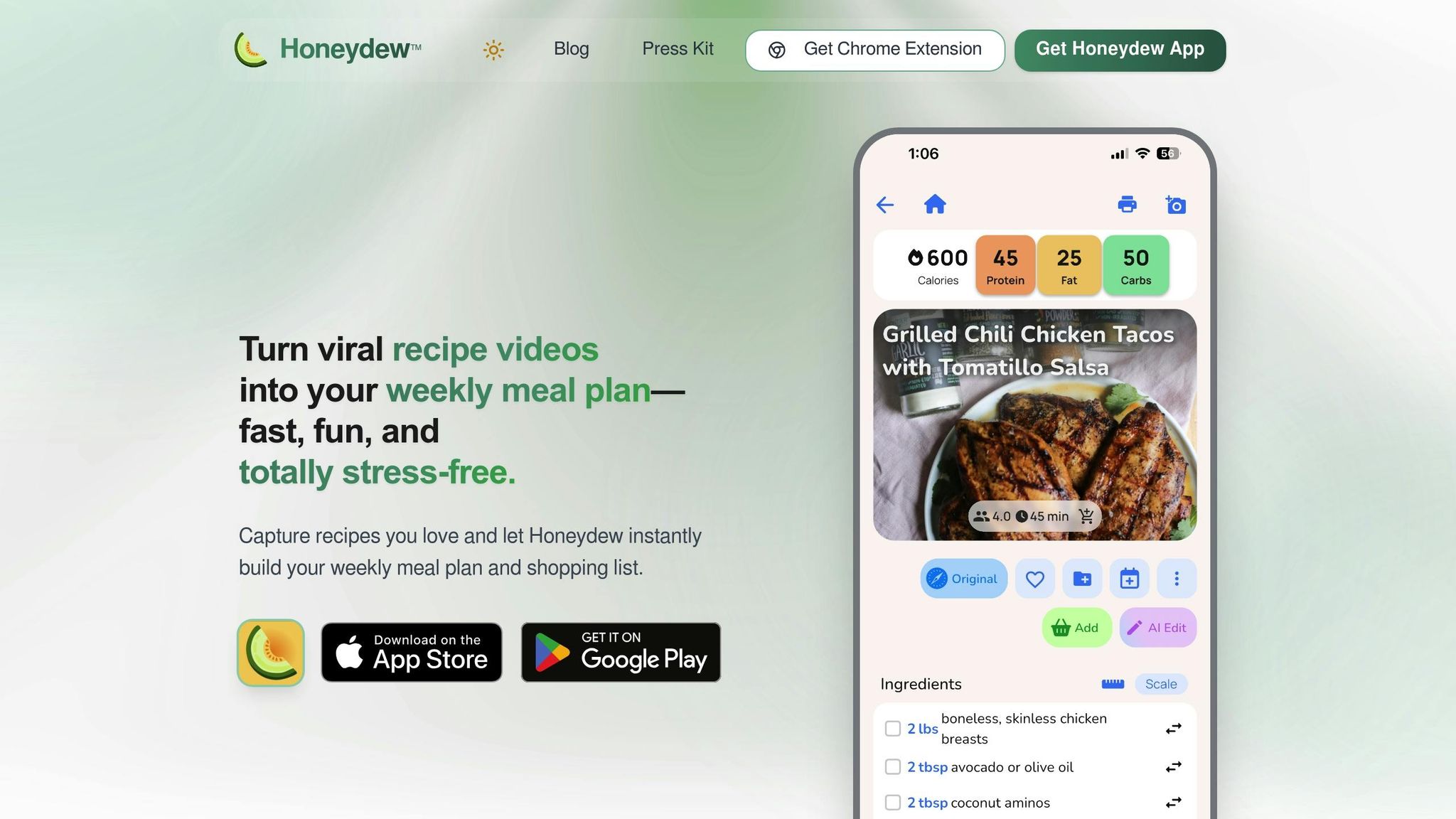
Pairing your Instant Pot with Honeydew Recipe Manager takes voice-command cooking to a whole new level. This app lets you organize recipes from various sources - social media, websites, and even screenshots - into easy-to-follow formats. By transforming meal ideas into clear ingredient lists and step-by-step instructions, Honeydew makes voice-guided Instant Pot cooking simpler and more efficient.
Importing Recipes for Voice-Based Cooking
Honeydew makes recipe importing effortless. Whether it’s a viral TikTok video, a YouTube tutorial, or an Instagram Reel, the app captures Instant Pot recipe ideas seamlessly. It also supports standard recipe websites and even extracts recipes from screenshots or digital notes. Once saved, your recipes are stored in an offline digital cookbook, ensuring access even if your Wi-Fi cuts out mid-cooking.
To make cooking even easier, the app includes a "no screen lock" feature that keeps your phone display active while you follow a recipe. With over 50,000 downloads and a stellar 4.8/5 rating on Google Play as of January 2026, it’s clear that users love how simple it is to save and organize recipes from nearly any source.
AI Meal Planning and Grocery Lists
Honeydew’s AI-powered tools take meal planning up a notch. It creates weekly meal plans tailored to your preferences, complete with grocery lists sorted by store section. The app also calculates calories and macros, supports diets like Keto and Paleo, and syncs with up to six family members. Need to adjust serving sizes or switch between Imperial and Metric units? Honeydew handles it all, even suggesting smart ingredient substitutions when needed.
For those who want more, Honeydew Plus offers unlimited recipe storage and advanced features for $4.17/month or $39.99/year. The free version still packs a punch, allowing up to 10 recipe imports and basic meal planning tools, making it a great option for casual users.
Safety Tips for Voice-Controlled Cooking
Using voice commands to operate your Instant Pot can make cooking more convenient, but safety should always be a top priority.
Avoiding Command Misinterpretations
Voice commands can initiate cooking programs, but they won't control the steam release valve. You'll need to manually set the valve to "Sealing" for pressure cooking or "Venting" for steam or slow cooking. After giving a voice command, double-check the digital display to ensure the correct mode and time are set. Look for the display to switch to "ON" during preheating, and stick around long enough to hear the initial hissing sounds before stepping away.
For pressure cooking, make sure to use at least 1.5 cups of liquid for 6-quart models and 2 cups for 8-quart models to generate enough steam. If the voice assistant mistakenly starts a dry-heat function like Sauté instead of Pressure Cook, press the "Cancel" button right away to stop the process. Also, inspect the silicone sealing ring before starting any voice-controlled cycle - it should be securely in place and free from damage.
"Never attempt to open the lid when the float valve is in the upper position. That means it's pressurized and could result in the dangerous release of steam or hot food." - Yumna Jawad, Food Expert
Even with voice commands, staying attentive and performing manual checks are crucial for safe cooking.
Monitoring Your Instant Pot
Voice control doesn’t replace the need for hands-on monitoring. Never fill the pot beyond the "PC MAX - 2/3" line for most foods or the " - 1/2" line for items that expand, like rice or beans, to avoid blocking the steam release. Stay close until the float valve pops up, signaling that the pot is pressurized. Before opening the lid, always confirm the float valve has fully dropped, no matter what the voice assistant indicates. If steam escapes from the lid or a "Burn" warning appears, hit the "Cancel" button immediately.
If the lid feels stuck after cooling, it’s likely due to a vacuum seal. Move the steam release handle to "Venting" to break the seal safely. Remember, voice commands cannot check liquid levels or confirm the lid is properly aligned, so these steps must always be done manually.
"Instant Pot electric pressure cookers are designed with at least 10 safety mechanisms to ensure your safety." - Instant Brands
Conclusion
Voice commands transform your Instant Pot into a truly hands-free cooking assistant. Whether you're helping with homework, tackling household chores, or juggling multiple dishes, voice control allows you to check cooking progress and adjust settings without interrupting your flow.
"This collaboration with Google shows our commitment to make life a little easier for people, especially when it comes to mealtime." - Dr. Robert Wang, Founder and CEO, Instant Brands Inc.
But the benefits go beyond convenience - voice control can also enhance your meal planning. By pairing it with tools like Honeydew Recipe Manager, your kitchen becomes an efficient, interconnected workspace. Honeydew simplifies recipe imports from websites and social media, organizes grocery lists, and helps plan meals seamlessly. With over 100,000 downloads and a stellar 4.8/5-star rating from more than 6,600 reviews, it's a perfect companion for voice-controlled cooking.
Imagine this: import an Instant Pot recipe in seconds, let Honeydew's AI generate your weekly meal plan, and then cook each dish hands-free using voice commands. The basic app is free, while Honeydew Plus, offering unlimited recipe storage and extra features, costs just $4.17/month.
Start using voice commands today and combine them with Honeydew to simplify meal prep, grocery shopping, and cooking.
FAQs
How can I set up voice control for my Instant Pot?
To use voice control with your Instant Pot, start by confirming that your model includes Wi-Fi and supports voice assistants like Alexa or Google Assistant. Once you've verified this, download the correct app for your Instant Pot - usually the official Instant Pot app. Follow the steps in the app to connect your Instant Pot to your home Wi-Fi network.
Next, activate the Instant Pot skill in the Alexa app or link your device through the Google Home app, depending on your preferred assistant. This setup will require logging in and authorizing the connection between your Instant Pot and the voice assistant. Once everything is linked, you can issue commands like, "Alexa, set the Instant Pot to sauté", or "Hey Google, start pressure cooking."
For more specific guidance tailored to your model, check the user manual or the setup instructions in the app.
Can I use voice commands to change cooking times and settings on my Instant Pot?
Yes, you can control your Instant Pot using voice commands through Alexa or Google Assistant. This lets you adjust cooking times, switch between modes, set timers, and even start or stop cooking - all without lifting a finger.
Voice control is especially handy when your hands are busy or messy. Just ensure your Instant Pot is compatible with smart assistants and properly connected to enjoy this convenient feature.
What can I do if my voice assistant isn't connecting to my Instant Pot?
If your voice assistant isn’t connecting to your Instant Pot, start with the basics. First, make sure your Instant Pot is plugged in and powered on. Then, check that your Wi-Fi network is functioning properly. Also, confirm that your Instant Pot is linked to the correct app and that the app is synced with your voice assistant.
If the problem continues, try restarting your Instant Pot, voice assistant, and router. It’s also a good idea to check if the firmware for both devices is up to date. Still stuck? Refer to the user manuals or contact customer support for further help.